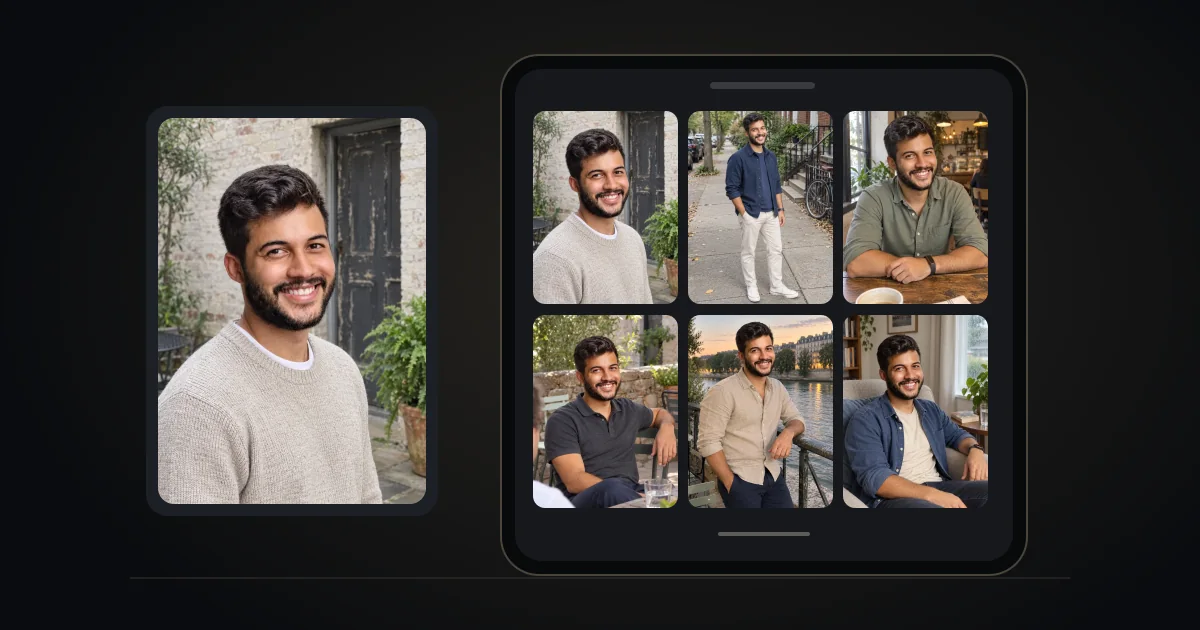
Hinge Photo Size & Aspect Ratio: Crop and Upload Tips
What size should Hinge photos be? Learn how to check the crop, keep images sharp, choose an export format, and troubleshoot blurry uploads.
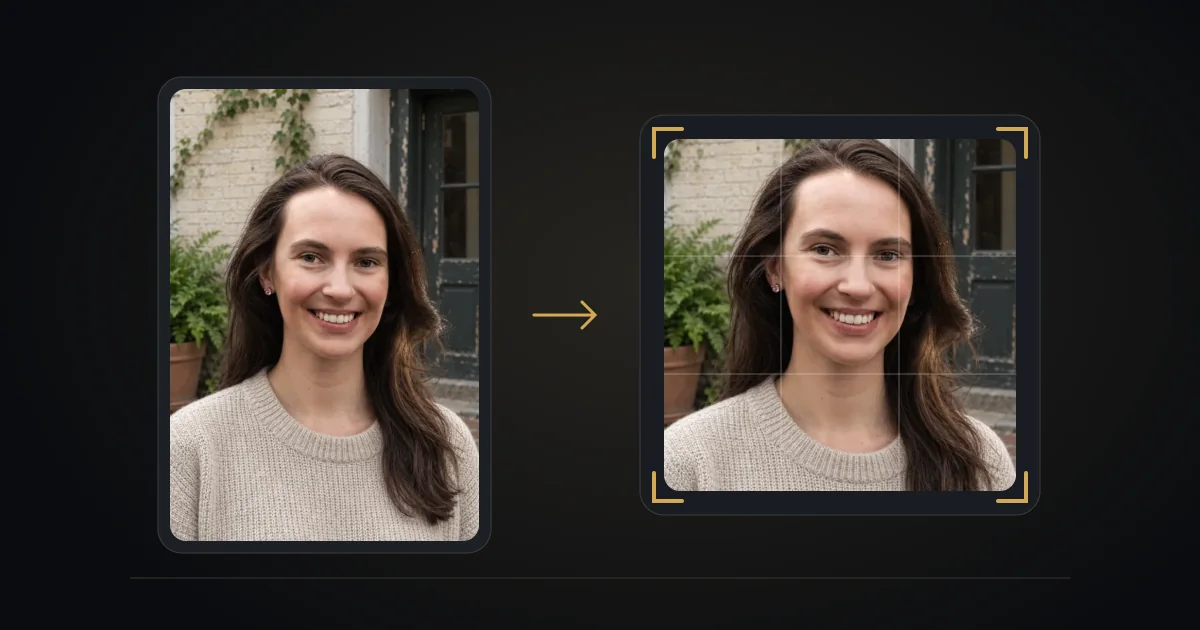
For Hinge photos, start with a sharp original, use a JPEG copy if you need a broadly compatible format, and check the crop in the app before saving. We could not verify a current Hinge specification requiring 1080 x 1350 pixels, a 4:5 aspect ratio, or an 8MB limit. Those numbers should not be presented as official requirements.
Hinge Photo Size: What Should You Upload?
Use an original camera image with enough detail to remain clear after cropping. Avoid screenshots of photos or copies saved repeatedly through messaging apps. Resizing a small, blurry image to a larger pixel count does not restore the missing detail.
You can make a smaller export copy if a large file is difficult to upload. Keep the original so you can try a different crop later. A width of 1080 pixels can be a practical test export, but it is not a verified minimum and does not guarantee a sharper result.
What Aspect Ratio Does Hinge Need?
Use the crop preview in your version of Hinge as the final check. Do not force every picture into 4:5 on the assumption that it is a universal native format. Leave space around your head, shoulders, and any important object so you have room to adjust.
- Portrait: Check that the crop retains your face and enough of the setting.
- Square: Preview it rather than assuming it will leave empty space.
- Landscape: Make sure you remain recognizable when the image is displayed in the profile.
If the crop cannot preserve the point of a photo, choose another image instead of stretching it.
JPEG, HEIC, and iPhone Photos
JPEG is a useful compatibility option when another format causes trouble. On supported iPhones, Settings > Camera > Formats > Most Compatible makes new photos use JPEG. It does not convert photos you have already taken.
For an existing HEIF image, use an export or conversion tool that explicitly offers JPEG. On a Mac, Photos or Preview can export it to another format. Simply tapping Edit and Done on an iPhone is not a reliable JPEG conversion workflow. See Apple's HEIF and HEVC guide.
Why Do Hinge Photos Look Blurry?
Check where the loss of detail first appears. Open the original, then the exported copy, then the uploaded preview. Possible causes include missed focus, a heavy crop, low resolution, repeated compression, or processing during upload. You cannot diagnose the cause from file extension alone.
- Start again from the original rather than a downloaded social-media copy.
- Use a lighter crop if your face occupies only a small part of the original.
- Export once at a reasonably high quality setting.
- Compare the saved profile with the file you uploaded.
A stable connection is worth trying when an upload stalls or fails, but that does not establish that Hinge deliberately reduces image quality on cellular connections.
Colors, Filters, and Live Photos
If your editor offers a color-space choice, sRGB is a practical starting point for a web-oriented export. A color shift and a loss of sharpness are different problems; changing the color profile will not fix an out-of-focus image.
Avoid heavy smoothing and edits that change how you look. For a Live Photo, inspect the still frame selected for upload and use an explicitly exported still if you want control over the frame. Preview the result rather than assuming the motion will appear.
Pre-Upload Checklist
- Use a recent, recognizable image of yourself.
- Keep the original and edit a copy.
- Check focus and detail before uploading.
- Try JPEG if your current format causes an upload problem.
- Follow any file-size or format message the app actually displays.
- Check the saved profile for cropping, blur, and color changes.
For photo count, Hinge says four to six photos are required depending on location, plus three prompt answers. See Hinge's profile guide and our six-photo planning guide for help choosing a varied set.
Ready to put the photos and answers together? Explore the Hinge Profile Kit: photo generation and help with prompt answers. Review every image for an accurate likeness before using it.